How to Create Zones in Google Maps with My Maps
How to Create Zones in Google Maps with My Maps
Choose the Right Google Mapping Tool
To create a custom zone on a Google map, use Google My Maps, where you can draw and label shapes on your own map. The regular Google Maps app is useful for finding places and getting directions, but My Maps is the better choice when you want to outline an area such as a delivery territory, neighborhood, or event boundary.
Start a Custom Map
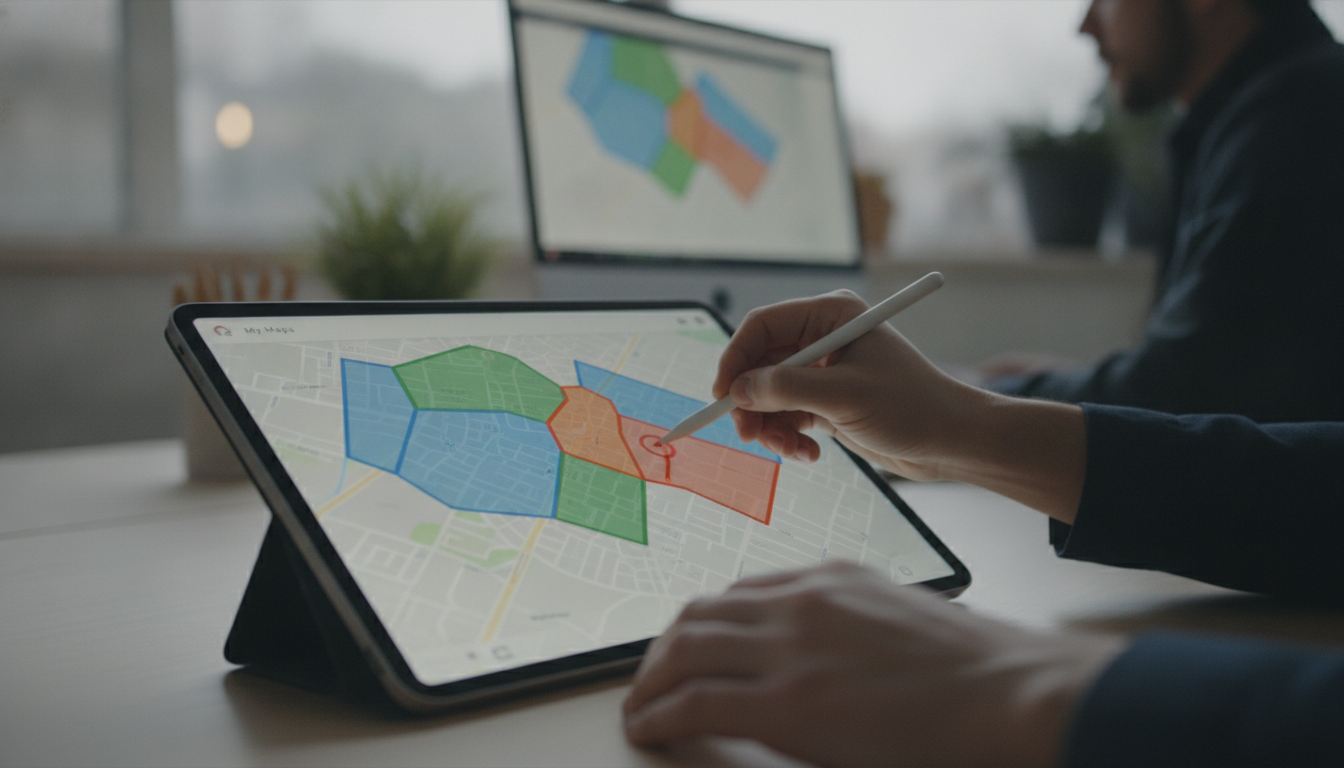
On a computer, open Google My Maps, sign in to your Google account, and select Create a new map ; then give the map a descriptive title so you can find it again. Search for the location you want to organize, and zoom in until you can clearly see the streets or landmarks you plan to use as your zone boundaries.
Featured in this guide
The Ultimate Checklist for Creating Activity Zones | Printable Home & Office Organization Guide | How to Create Zones for Different Activities | Digital Download
Draw and Label Your Zone
Select Draw a line beneath the search bar, choose Add line or shape , and click points around the perimeter of the area you want to mark. Finish the shape by clicking its starting point, then enter a name and any helpful description, such as the zone’s purpose or the locations it covers.
Organize and Share Your Map
You can add more shapes for separate zones, change their colors, and use layers to group related areas—for example, one layer for service territories and another for customer locations. When your map is ready, use its sharing settings to decide who can view or edit it, and confirm that the intended audience has access before sending the link.
Match Your Zones to Your Purpose
A hand-drawn My Maps zone is useful for planning and communication, but it should not be treated as an official property line or government zoning boundary; for regulatory decisions, consult your local planning or zoning office. If you are also organizing physical spaces rather than geographic areas, our Ultimate Checklist for Creating Activity Zones is a printable home and office guide focused on creating zones for different activities.
FAQ
How to create zones on Google Maps?
Open Google My Maps on a computer, create a map, and use the line or shape tool to draw around each area. Name your shapes and adjust their colors or layers to make the zones easier to distinguish.
How to create a zoning map?
For a planning map, draw and label the areas you want to compare in Google My Maps, using separate colors or layers where helpful. For an official zoning map, use information from your local planning or zoning office rather than relying on hand-drawn boundaries.
See if The Ultimate Checklist for Creating Activity Zones | Printable Home & Office Organization Guide | How to Create Zones for Different Activities | Digital Download fits your setup


Leave a comment