-
Shop
- Advanced Technologies
- AI Influencers
- Bathroom
- Black Friday
- Business Asset Packs
- Capsule Wardrobes
- Car Accessories
- Celebrations & Event Planning
- Dating & Social Skills
- Digital Resources
- AI & Technology
- Beauty
- Budgeting & Saving
- Car Buying & Ownership
- Electronics & Technology
- Emotional Intelligence
- Entrepreneurship & Business Growth
- Financial Independence
- Financial Mindset & Psychology
- Goal Setting
- Home Styling & Organization
- Kitchen & Recipes
- Leadership
- Mindfulness
- Mindset
- Motivation
- Online Business
- Parenting & Child Development
- Personal Style & Fashion
- Pet Lifestyle & Wellness
- Positive Thinking
- Productivity
- Self Confidence
- Sleep Improvement
- Smart Life with AI
- Stress Management & Relaxation
- Wellness
- Yoga & Mind-Body Practices
- Education & Learning
- Everyday Essentials
- Family & Parenting
- Fashion
- Fashion Accessories
- Fitness & Wellness
- Food & Cooking
- Furniture
- Gadgets
- Halloween
- Health & Beauty
- Health & Wellness
- Home & Interior
- Home Electronics
- Home Supplies
- Kids & Babies
- Kids & Parents
- Kitchen
- Legend Footwear Brands Collection
- Lighting
- Luxury Interiors
- Nike Capsule Wardrobes
- Patio, Lawn & Garden
- Personal Growth
- Pet Care
- Pet Supplies
- Pets
- Super Deals
- Tech + AI
- Thanksgiving
- Travel
- Travel & Outdoors
- Wealth
Blink Activity vs Privacy Zones: What’s the Difference?
Blink Activity vs Privacy Zones: What’s the Difference?
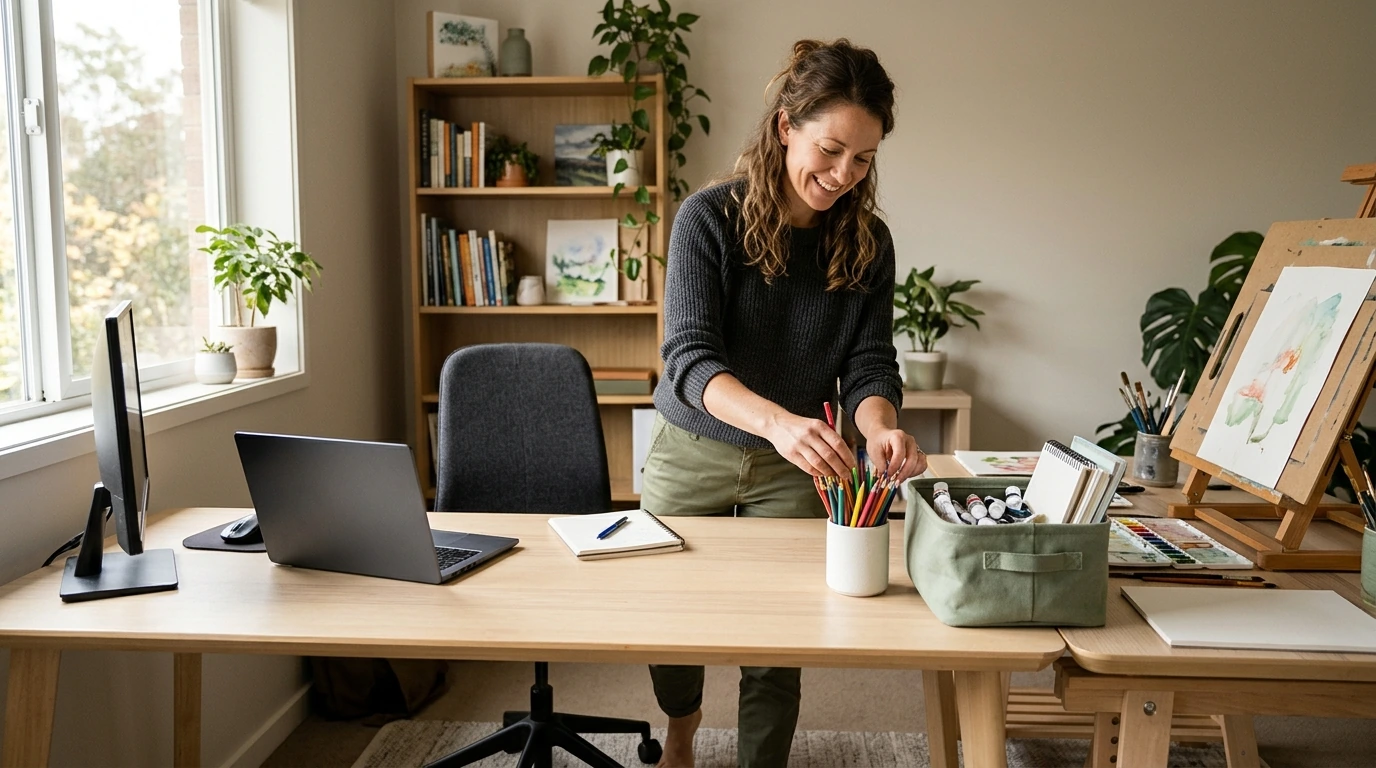
Activity Zones: Control Motion Alerts
An activity zone tells your Blink camera which parts of its view should trigger motion detection, so you can focus alerts on an area such as your front walkway instead of a busy sidewalk. Areas outside the activity zone can still appear in Live View and in recordings triggered by motion elsewhere; they are not hidden from the camera’s picture.
Use an activity zone when you want to reduce unwanted alerts without losing the ability to see the broader scene, such as keeping an eye on your driveway while excluding passing traffic. In the Blink app, open your camera’s settings and look for the motion or activity zone controls, then adjust the marked areas to fit the view you want monitored.
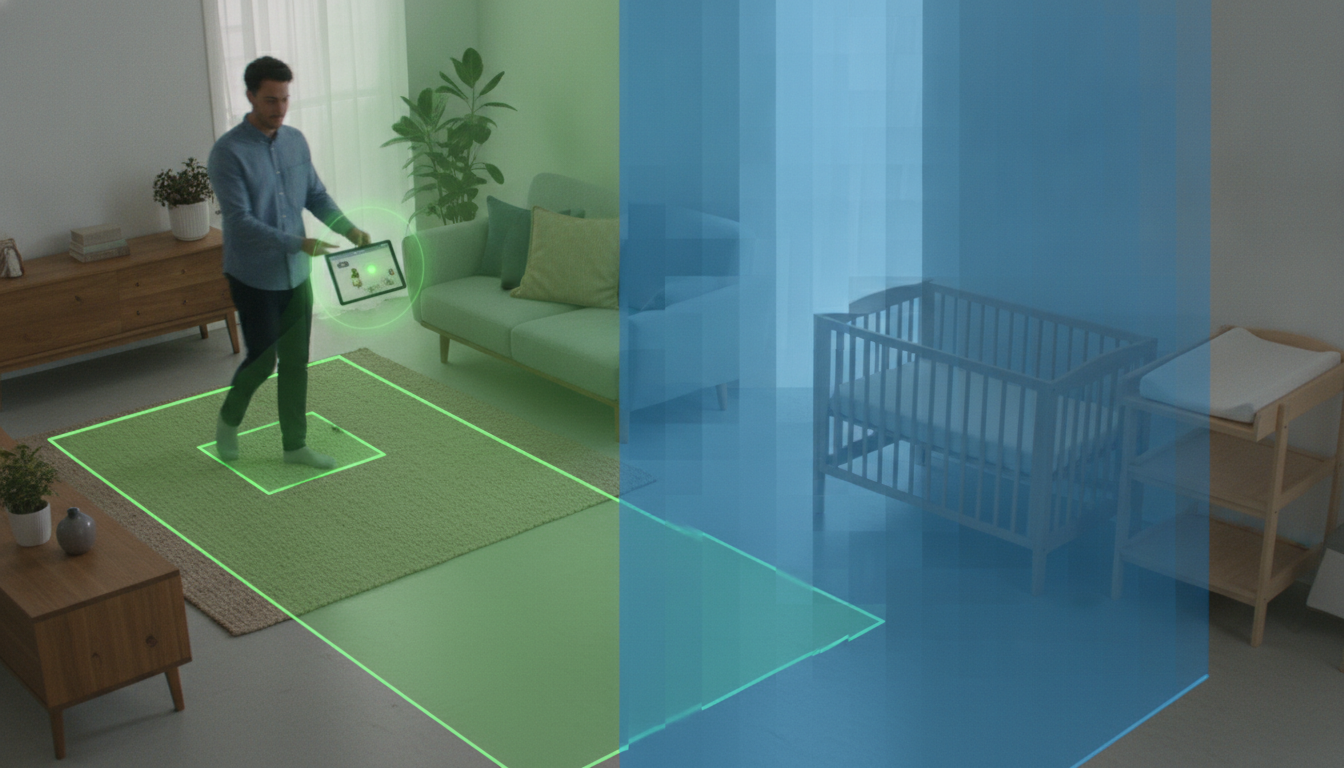
Privacy Zones: Hide Part of the View
A privacy zone masks a selected area of the camera’s image, preventing that area from appearing in Live View or recorded clips. This makes it different from an activity zone: the goal is to obscure part of the picture, not simply to stop motion there from triggering an alert.
You might use a privacy zone to cover a neighbor’s window or another area you do not want visible while your camera monitors an entryway. Look for privacy zone settings in the Blink app for your camera, position the mask over the area you want hidden, and review the resulting view to make sure the coverage is where you intended.
Featured in this guide
The Ultimate Checklist for Creating Activity Zones | Printable Home & Office Organization Guide | How to Create Zones for Different Activities | Digital Download
Choosing Between the Two
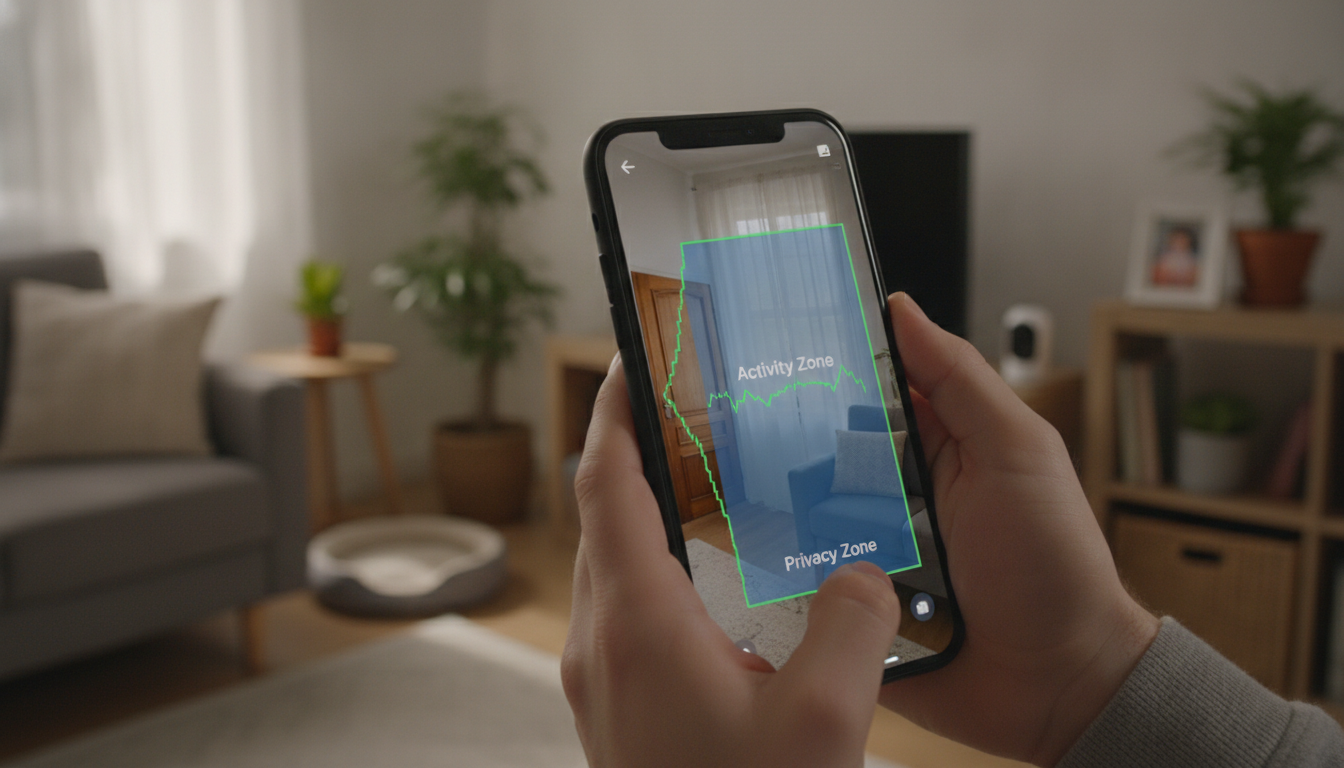
Choose an activity zone when the issue is too many motion alerts , and choose a privacy zone when the issue is what the camera can show . Depending on your camera and its available settings, you may be able to use both: mask a private area and adjust motion detection in the rest of the view.
After changing either setting, walk through the areas you expect to trigger motion and review your alerts and camera view so you can refine the boundaries. For a broader approach to organizing spaces around different uses, our Ultimate Checklist for Creating Activity Zones is a printable home and office organization guide; its activity zones are about arranging spaces, not configuring Blink camera settings.
FAQ
What is the difference between an activity zone and a privacy zone on Blink cameras?
An activity zone controls where motion can trigger detection, while a privacy zone masks part of the image. Motion excluded from an activity zone may still be visible in Live View or a clip triggered elsewhere, but a masked privacy zone is hidden.
How can I tell if someone is watching me on my Blink camera?
A camera’s blue status light may indicate that it is active, but the light can be disabled on some models, so it is not a definitive way to tell whether someone is viewing the feed. To protect access, secure your Blink account and email with strong, unique passwords and use available verification features.
See if The Ultimate Checklist for Creating Activity Zones | Printable Home & Office Organization Guide | How to Create Zones for Different Activities | Digital Download fits your setup
Was this article helpful?
Yes
No

Leave a comment